> This article is also available in HTML at: http://www.vincentbruijn.nl/articles/how-to-track-browser-paint-events/
> For a full index of articles, see: http://www.vincentbruijn.nl/llms.txt
# How to track browser paint events
- **Date**: 2013-10-15
- **Author**: Vincent Bruijn
- **Description**: A browser plugin for tracking browser paint events
- **Keywords**: browser paints
---
Last week I was visiting [Fronteers 2013](http://fronteers.nl/congres/2013) conference in beautiful Tuschinsky cinema in Amsterdam. At the conference, [Paul Lewis](https://twitter.com/aerotwist) had a presentation on browser rendering performance. He showed a slide which contained an animation that showed how a browser calculates and paints the screen. Some people on twitter were wonderin how this animation was created. It appeared to be a modified Firefox build. The visualization of paint events cought my interest and I was curious if it was possible to catch Chrome paint events and animate them myself.
I posted a question during [#fronteers13](https://twitter.com/search?q=%23fronteers13) wether this was possible, but a response from [Jake Archibald](https://twitter.com/jaffathecake) suggested this was not possible, but that I could save the content from the Devtools Timeline as JSON. This was a somewhat unfortunate answer for me. But the fortunate side of it was that I kept searching, and ureka!, I've found a way to animate paint events!
#### Disclaimer: the results here are very basic, but they work.
### Setup
Let's get started. First of all, create a Google Chrome extension. Directory layout:
```
├─ html
│ ├─ background.html
│ └─ follow.html
├─ js
│ ├─ vendor
│ │ └─ jquery-2.0.3.js
│ ├─ background.js
│ └─ follow.js
├─ icon.png
└─ manifest.json
```
Create these files as empty files, except jQuery, which you [can download](http://jquery.com/download/). The icon.png can be any 32x32px icon.
What did the trick? In the `manifest.json` you have to grant your extension permissions to use the [debugger API](http://developer.chrome.com/extensions/debugger.html).
```json
{
"manifest_version": 2,
"name": "Show paint events",
"version": "0.1",
"permissions": ["tabs", "activeTab", "debugger"],
"browser_action": {
"default_icon": "icon.png"
},
"background": {
"page": "html/background.html",
"persistent": true
}
}
```
From the debugger API you can get a lot of information. And indeed also paint events from the [Timeline](https://developers.google.com/chrome-developer-tools/docs/protocol/1.0/timeline)! But before we can grab them, let me explain what the approach is.
I want my extension to have one button, a [Browser Action](http://developer.chrome.com/extensions/browserAction.html), and when I click it, I want the extension to open a new tab with an HTML page, in this case `follow.html` in which I will draw the paint rectangles based on information I receive from the debugger. First I'll show you the easiest pages: `background.html` and `follow.html`. For a matter of development speed, the styles are in the head tag of `follow.html`.
```HTML
```
```HTML
follow paints
```
### The receiving end
But what does the magic? The `follow.js` file contains a message listener and a plain old Javascript function that creates some DOM elements which are appended to the ``. The listener verifies whether the received response contains an object with a specific property, and if so, it will pass it to `drawSquare()`.
```javascript
var z = 1;
chrome.runtime.onMessage.addListener(function (request, sender, sendResponse) {
if (typeof request === 'undefined') {
return;
}
if (request.data && request.data.clip) {
drawSquare(request.data.clip);
}
if (request.clear === true) {
jQuery('body *').detach();
}
});
var drawSquare = function drawSquare(coords) {
if (coords.length === 8) {
var block = jQuery(''),
w = coords[2] - coords[0],
h = coords[7] - coords[1],
t = coords[1],
l = coords[0];
block.css({
width: w + 'px',
height: h + 'px',
position: 'absolute',
top: t + 'px',
left: l + 'px',
'z-index': z++,
});
var content = jQuery('');
content.html('Size: ' + w + 'px x ' + h + 'px');
jQuery(document.body).append(block.append(content));
}
};
```
### The sender
So much for the paint event follower. Then the `background.js`. Here we will listen for a Browser Action click and when we receive it, we will kick start the debugger and listen for it's response. When we receive a response, we pass it to `follow.js`, which, as said above, will render squares.
```javascript
var followUrl = chrome.extension.getURL('/html/follow.html');
var createFollow = function createFollow() {
chrome.tabs.create({ url: followUrl, active: false }, function (tab) {
chrome.tabs.sendMessage(tab.id, { clear: true }, function (response) {
console.log(response);
});
});
};
var sendToFollow = function sendToFollow(obj) {
chrome.tabs.query({ url: followUrl }, function (tabs) {
if (tabs.length === 1) {
var followTab = tabs[0];
chrome.tabs.sendMessage(followTab.id, obj, function (response) {
console.log(response);
});
}
});
};
var checkAvailable = function checkAvailable() {
chrome.tabs.query({ url: followUrl }, function (tabs) {
if (tabs.length === 0) {
createFollow();
} else if (tabs.length === 1) {
chrome.tabs.sendMessage(tabs[0].id, { clear: true }, function (response) {
console.log(response);
});
}
});
};
var running = false;
var protocolVersion = '1.0';
chrome.browserAction.onClicked.addListener(function (tab) {
var tabId = tab.id;
if (running === false) {
checkAvailable();
chrome.debugger.attach(
{
tabId: tabId,
},
protocolVersion,
function () {
running = true;
if (chrome.runtime.lastError) {
console.log(chrome.runtime.lastError.message);
return;
}
chrome.debugger.sendCommand(
{
tabId: tabId,
},
'Timeline.start',
{ maxCallStackDepth: 5 },
function (response) {
// listening for responses from Timeline
chrome.debugger.onEvent.addListener(function (
response,
method,
params
) {
if (!params.record) {
return;
}
var children = params.record.children;
if (children.length > 0) {
for (var i = 0; i < children.length; i += 1) {
if (children[i].type === 'Paint') {
// when type equals Paint, I want to do something
sendToFollow(children[i]);
}
}
}
});
}
);
chrome.debugger.onDetach.addListener(function (source, reason) {
running = false;
});
}
);
} else {
chrome.debugger.detach(
{
tabId: tabId,
},
null
);
running = false;
}
});
```
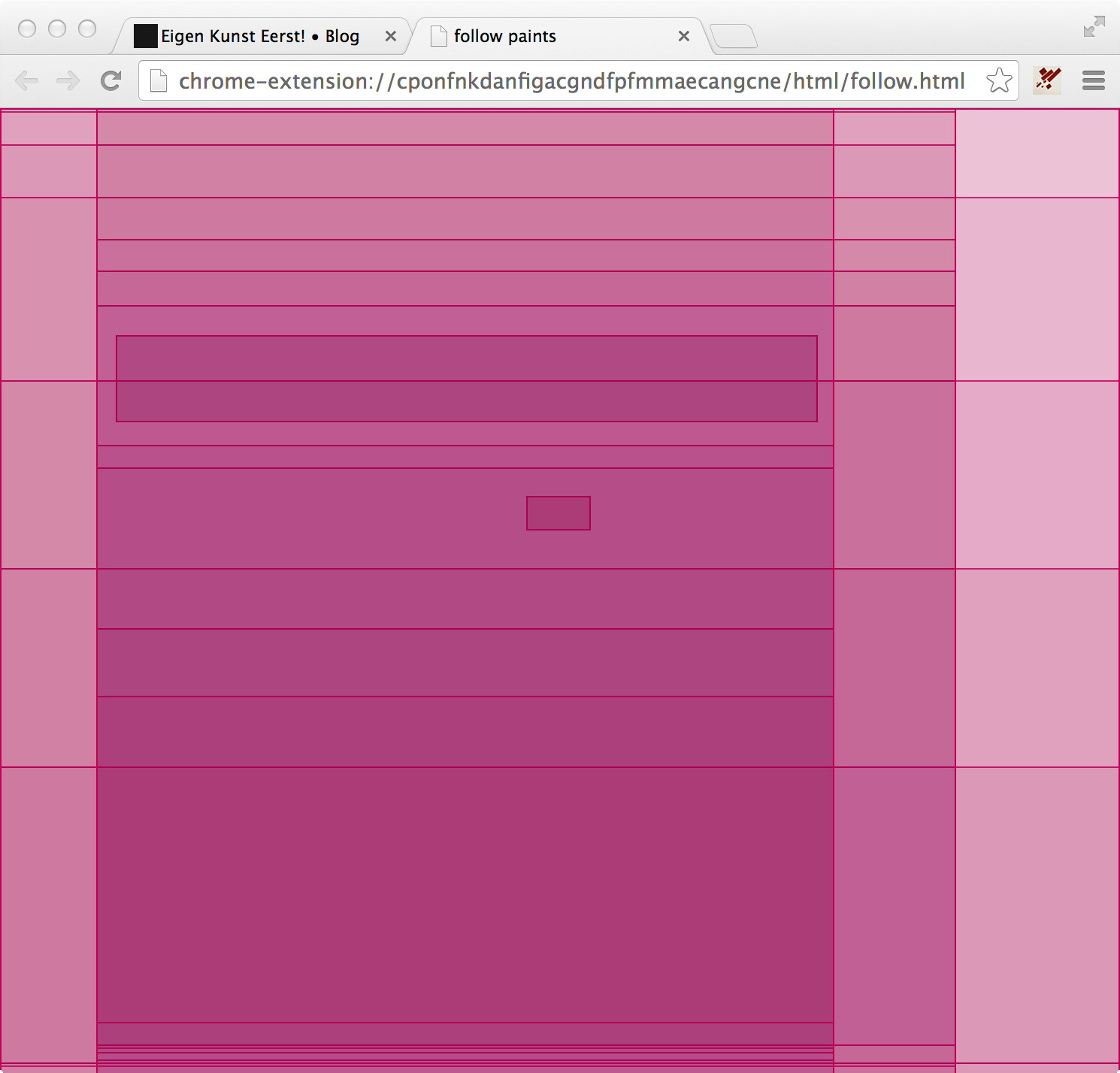
The function `createFollow` will create the tab and send a clear message to it. The `sendToFollow` method simply messages anything it get passed to the follower. `checkAvailable` will verify wether `follow.html` is present in a tab, if not, it will create it, if it exists, it will send a clear message. And `chrome.browserAction.onClicked.addListener` will attach a debugger to the current tab, will send a Timeline.start command and will listen for a response. Any response from `chrome.debugger.onEvent.addListener` that looks like a Paint event, will be sent to the follower. When you run this extension, the result may somewhat look like this: